Add Business and Keywords
Connect your Google Business Profile and choose the local searches to track.
Why it matters: Local customers search the map first; tracking starts with connecting the profile they find.
Before you start
- A Google Business Profile you manage
- A project
Connect your Google account
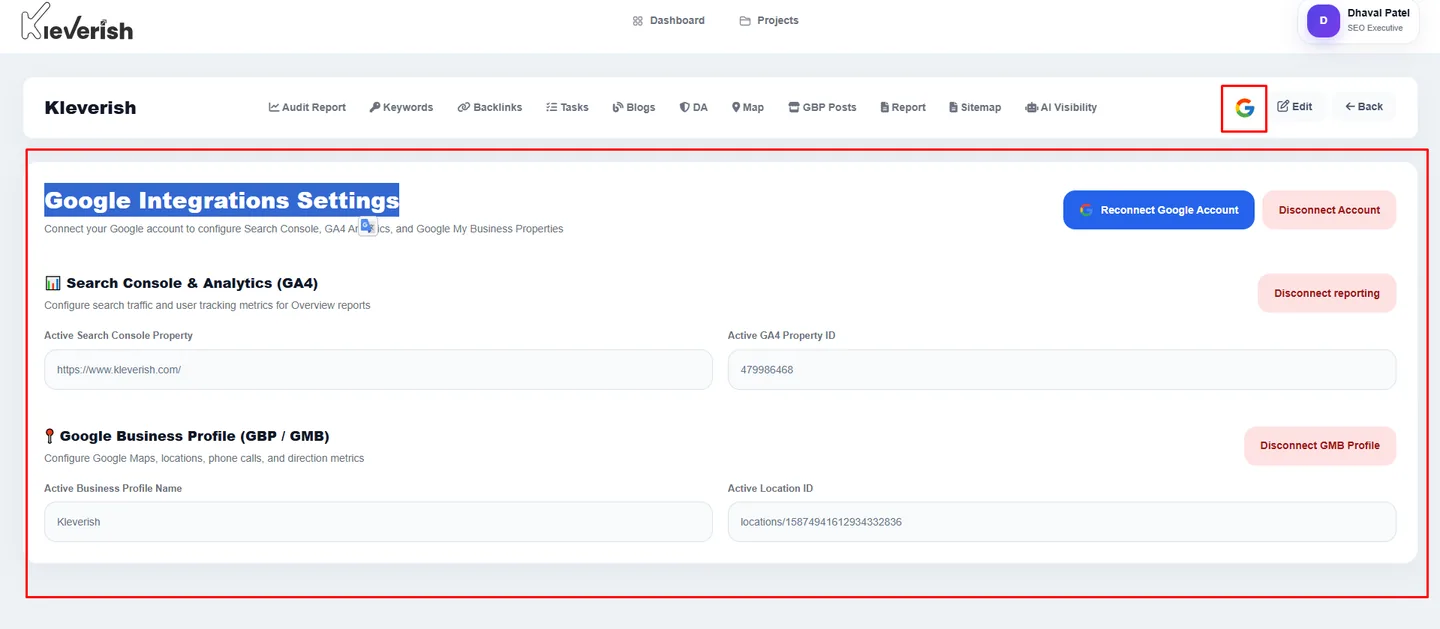
Click the Google icon in the top-right corner and open Google Integration Settings. Connect your Google account to enable Search Console, Google Analytics (GA4), and Google Business Profile data.
Step-by-step
-
1
Open Map
Click Map in the module bar and connect your Google Business Profile.

Step 1 — Open Map in the Kleverish dashboard -
2
Add map keywords
Click Add Keywords to Track and enter the local search terms you want to monitor, such as SEO agency in Ahmedabad.

Step 2 — Add map keywords in the Kleverish dashboard -
3
Let metrics flow
Monitor interactions, calls, website clicks, and direction requests with previous-period comparisons.
Expected result
Your GBP is connected with map keywords tracking monthly positions.
Helpful tips
- Track keyword + area combinations customers actually say, including neighbourhood names.
Common mistakes
- Tracking only your brand name — you already win that; track the category terms.
Troubleshooting
Connection fails
Confirm you manage the profile with the Google account used and re-authorise; then Sync Now.
Related guides
Try this in your own dashboard
Full platform access, no credit card.