Connect Google Business Profile (GMB)
Connect your Google Business Profile to manage local SEO activities, publish GBP posts, and track profile performance from Kleverish.
Why it matters: A connected Business Profile powers the GBP Post Generator and local reporting — without it, local SEO features have no listing to publish to or measure.
Before you start
- A Google account already connected to Kleverish
- Owner or Manager access on the Google Business Profile listing you want to connect
- A verified, published Business Profile listing (not a pending/unverified one)
Step-by-step
-
1
Open the Google Business Profile tab
Go to Settings → Google Integrations and select the Google Business Profile (GMB) tab.
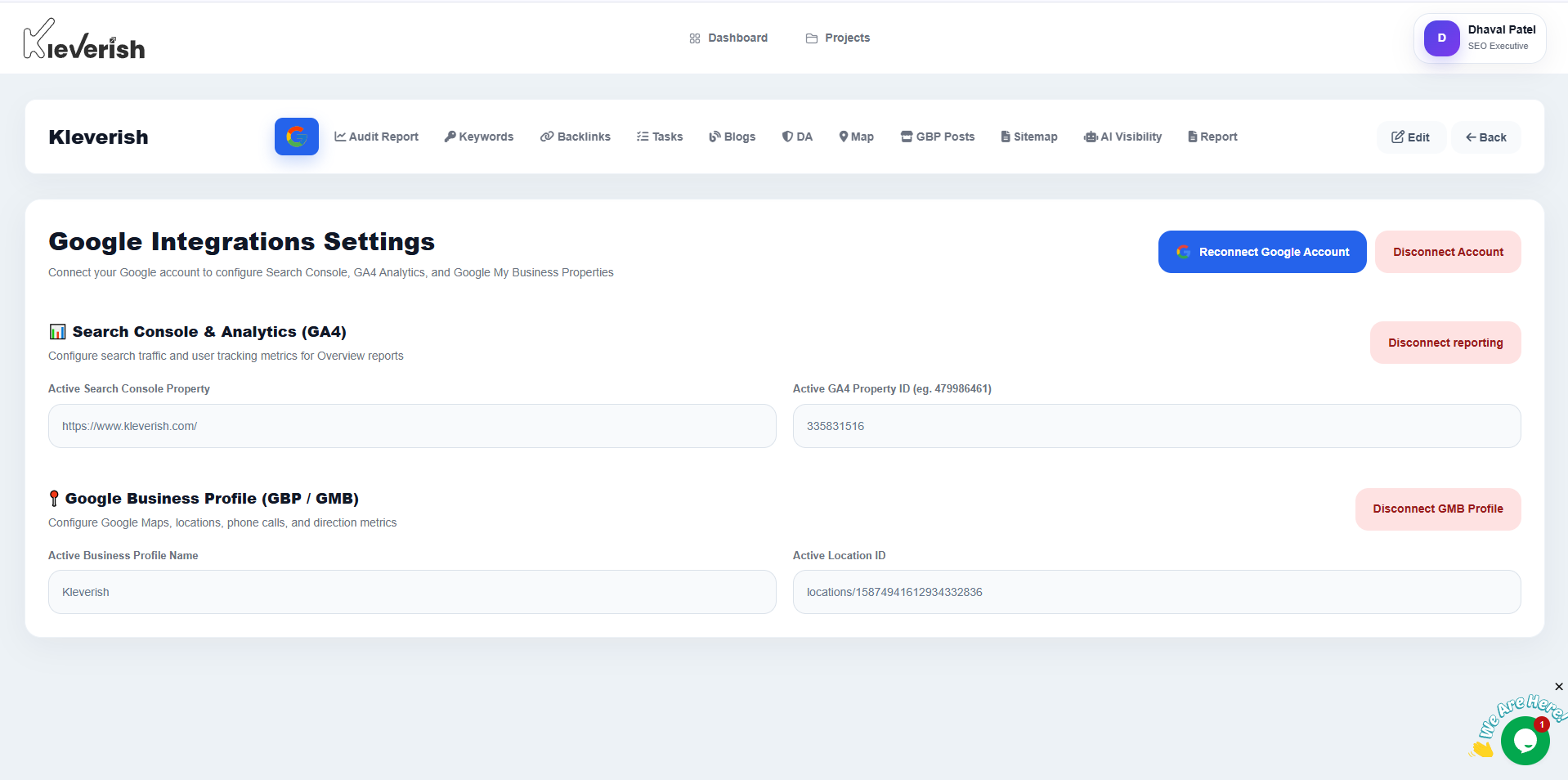
Google Business Profile fields in the Kleverish Google Integrations settings -
2
Select your business listing
Choose the Business Profile location you want to connect and click Link Listing.
-
3
Grant Permissions
Review the requested permissions for publishing posts and accessing profile insights, then click Allow.
-
4
Confirm the Connection
Verify that the listing shows a green Connected status. Your Business Profile is now ready to use with Kleverish's GBP features.
Expected result
Your Business Profile listing is ready to receive posts from the GBP Post Generator and its insights appear in your reports.
Helpful tips
- Managing several locations for one brand? Connect each listing separately — Kleverish links one location at a time.
- If a listing doesn't appear in the list, confirm it's fully verified in Google Business Profile Manager first.
- Agencies can connect client listings using an account that was invited as a Manager on that listing — full ownership isn't required.
Common mistakes
- Trying to connect a listing that is still pending Google verification — it won't appear in the selectable list.
- Connecting the wrong location when a business has multiple branches with similar names.
- Denying the posting permission scope, which leaves the listing connected but unable to publish GBP posts.
Troubleshooting
My business listing doesn't appear in the list
Confirm the connected Google account has Owner or Manager access on that listing in Google Business Profile Manager, and that the listing is fully verified.
Posts fail to publish after connecting
Reconnect the listing and make sure you accept the posting permission scope when Google asks — declining it blocks publishing even though the listing shows as connected.
Related guides
Try this in your own dashboard
Full platform access, no credit card.