Connect Your Google Account
Connect your Google account to enable Search Console, GA4, and Google Business Profile integrations in Kleverish.
Why it matters: Every other Google integration in Kleverish — Search Console impressions, GA4 sessions, GBP posting — depends on this one connected account staying active and correctly permissioned.
Before you start
- A Google account you can sign in to right now
- Owner or Editor access on the Google properties you plan to connect later (Search Console, GA4, Business Profile)
Step-by-step
-
1
Open Google Integrations settings
From your project, click the Google icon in the module bar or go to Settings → Google Integrations.
-
2
Click Connect Google Account
Click Connect Google Account and select the Google account you want to connect. You can use either a personal or Workspace account.
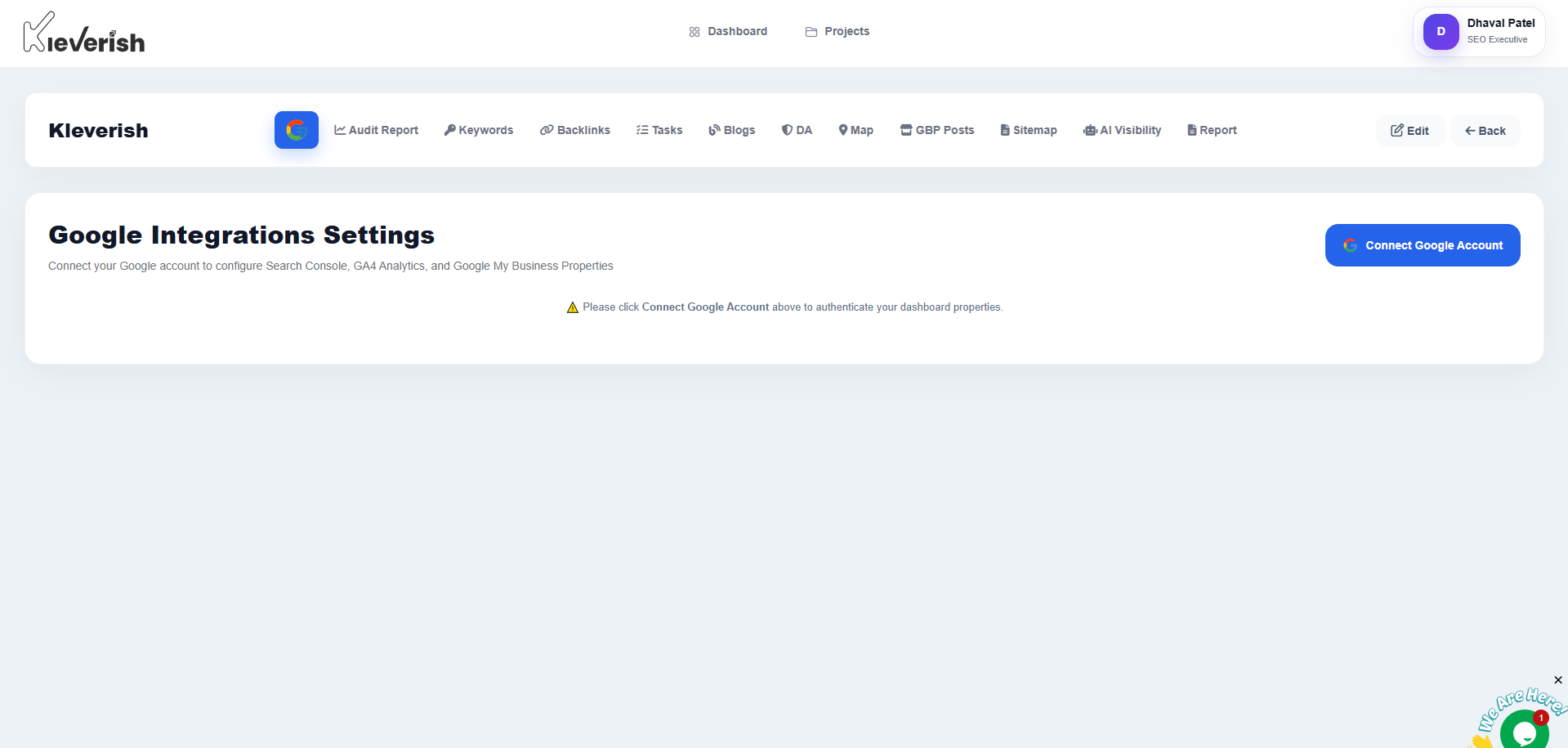
Connect Google account screen in the Kleverish dashboard -
3
Grant the requested permissions
Review the permissions requested by Kleverish for Search Console, GA4, and Google Business Profile, then click Allow.
-
4
Confirm the Connection
Return to Kleverish and check that your Google account appears with a green Connected badge. You can now link your Search Console, GA4, and Business Profile properties.
Expected result
A connected Google account ready to power Search Console, GA4 and Google Business Profile integrations.
Helpful tips
- Connect with an account that has permanent access — a departing team member's personal account can break the sync later.
- Agencies managing many clients often create one dedicated Google account for all Kleverish connections.
- You can disconnect and reconnect a different account at any time from the same settings screen.
Common mistakes
- Connecting a personal Google account that doesn't actually have access to the client's Search Console, GA4 or Business Profile — the account connects fine, but every property list stays empty.
- Denying one of the requested permission scopes, which leaves that specific module (for example GBP) disconnected even though the account shows as connected.
Troubleshooting
The Google sign-in window closes without connecting
This is usually a pop-up blocker. Allow pop-ups for kleverish.in and try again, or use a browser without third-party cookie restrictions enabled for Google sign-in.
Connected, but property lists are empty
The connected Google account doesn't have access to that property yet. Add it as a user in Search Console, GA4 or Business Profile, then reconnect.
Related guides
Try this in your own dashboard
Full platform access, no credit card.